
#vaikhari
Write once, post to X and LinkedIn from the terminal. One editor with a live preview of how each network will show your post, drafts, a schedule, and an AI agent that can draft posts for you (you approve every one). Free: LinkedIn through its free API, X through its own share page with one click.
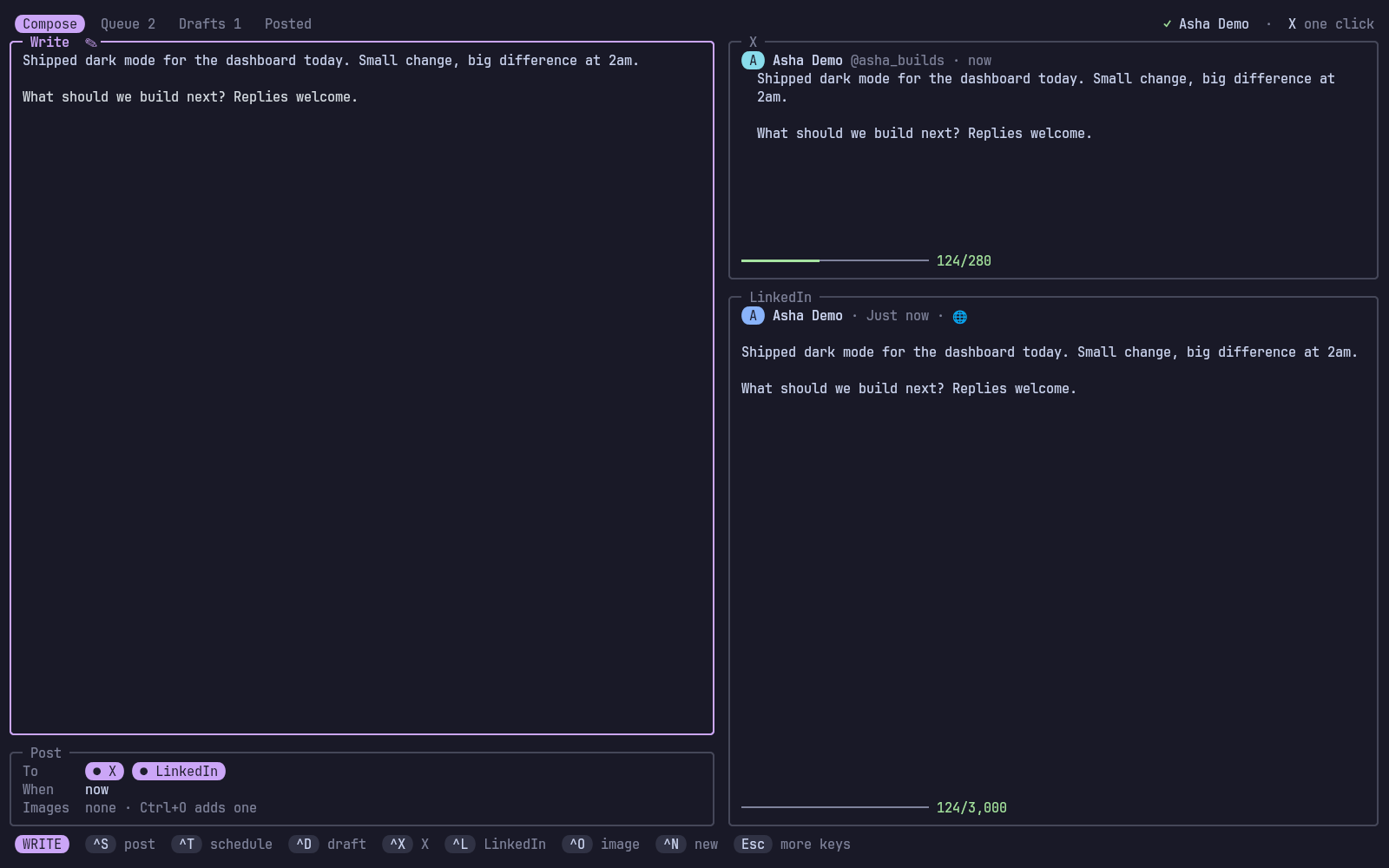
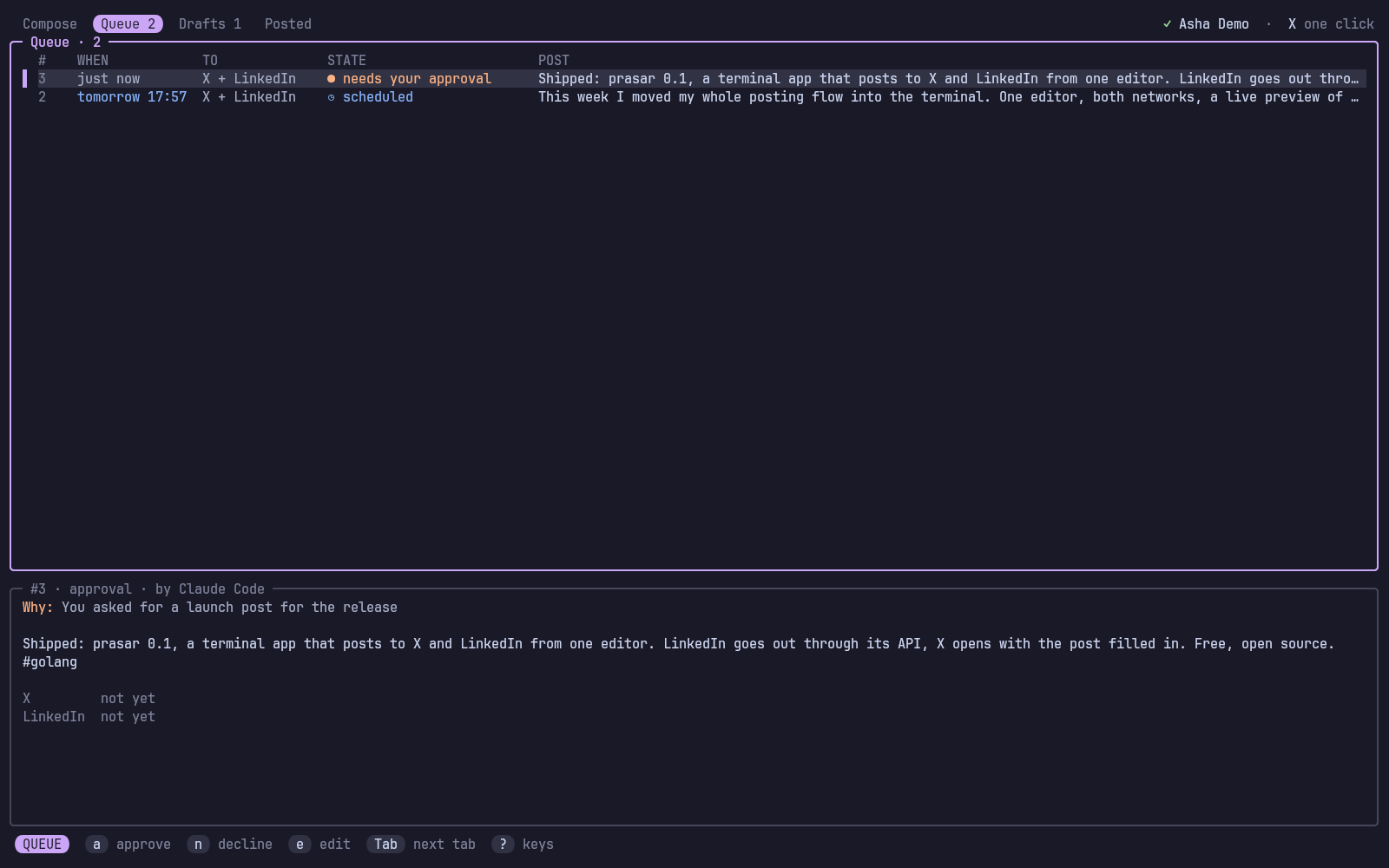
Screenshots use vaikhari demo: a made-up account.
Vaikhari (वैखरी) is Sanskrit for speech spoken aloud: the last of speech's four stages, the one other people hear.
#What it does
- One editor, two previews. Write on the left; on the right, the post as X shows it (with X's own count: links are 23, CJK and emoji 2) and as LinkedIn's feed shows it (folded where "…see more" cuts it), each with a meter that turns yellow near the limit.
- Threads. A post longer than X's 280 becomes a thread, split at sentence ends and numbered
1/3, or split it yourself with a line holding only---. On LinkedIn those lines become paragraph breaks, so the same text is one post there. - LinkedIn posts by itself through its free API, images included, and
#wordsbecome real hashtags. - X with one click: vaikhari opens X's share page with the post filled in, you press Post. Images go to your clipboard to paste. Why: X's API costs money per post since 2026 (ADR 2).
- Drafts, a schedule, history: tabs for Compose, Queue (waiting and scheduled), Drafts and Posted, with each post's links.
- Never lose a post: closing the screen keeps what you wrote as a draft.
- Agents draft, you decide:
vaikhari mcplets Claude Code (or any MCP agent) check, draft and propose posts; every one waits for your approval in a popup, where you can edit it (ADR 3). - Looks like the rest of your terminal: rounded boxes and key caps like narada, pattan and nauka, in your varna theme's colours (Catppuccin Mocha without it), changing live.
#Install
With kosha:
kosha install vaikhariOr with the installer, which downloads the release binary into ~/.local/share/vaikhari (or builds it with Go) and links ~/.local/bin/vaikhari:
curl -fsSL https://raw.githubusercontent.com/Theyashsawarkar/vaikhari/main/install.sh | bashFrom source: make && make install (Go 1.26+).
As a tmux plugin (TPM), prefix B opens it in a popup:
set -g @plugin 'Theyashsawarkar/vaikhari'The plugin runs the vaikhari on your PATH, or builds its own copy with Go the first time.
Optional: wl-clipboard (Wayland) or xclip (X11) for images on X and copying links, notify-send (libnotify) for notifications, secret-tool (libsecret) to keep the LinkedIn sign-in in your keyring.
Try it first without any account: vaikhari demo runs it with a fake LinkedIn in a throwaway folder (nothing is posted, X isn't opened).
#Set up LinkedIn
vaikhari posts to LinkedIn through an app of your own: free, self-serve, about two minutes, once (ADR 4).
Open vaikhari's Settings tab (Tab until you're there, or 5). It has the steps, opens the pages and copies the redirect URL for you, and takes the Client ID and Client Secret right there: Enter edits a field, Ctrl+S saves and signs you in. It's read-only until you do, so stray typing changes nothing. From a shell, vaikhari auth linkedin --setup does the same.
The steps:
- At linkedin.com/developers/apps/new create an app: any name, a LinkedIn page as its company (LinkedIn needs one; one you create works) and a logo.
- On the Products tab add Share on LinkedIn and Sign In with LinkedIn using OpenID Connect (both approved at once).
- On the Auth tab add
http://localhost:8723/callbackto "Authorized redirect URLs", and copy the Client ID and Primary Client Secret into vaikhari.
Then your browser opens on LinkedIn's sign-in. LinkedIn's sign-in lasts 60 days and can't be renewed silently: the screen's top right shows the days left, turning yellow in the last week, and Space , l (or vaikhari auth linkedin) signs in again.
vaikhari posts to your personal profile. Company pages need LinkedIn's review and aren't supported.
#Posting to X: one click
X has no free API any more, so vaikhari never logs in to X. When a post goes out:
- X's share page opens in your browser with the post filled in (the first image, if any, is on your clipboard:
Ctrl+Vpastes it). - You press Post there.
- Back in vaikhari, press
Enter. Paste the post's link first if you want it kept; for a thread, the link makes the next part a reply to it.
Esc leaves it for later (it waits in Queue, Space p x opens it again); Ctrl+K skips X for that post. A scheduled X post can't go out without you: at its time a notification offers to open it.
#The screen
vaikhari (or prefix B in tmux) opens on Compose, in the editor:
- Compose: the editor, the "Post" box (where it goes:
Ctrl+X/Ctrl+L; when; images), and the X and LinkedIn previews. Under 100 columns the previews give way to their counts. - Queue: what's waiting on you (an agent's post to approve, an X post to click, a LinkedIn post that failed) and the schedule, soonest first, with the selected post in full below. The footer shows the keys for that post.
- Drafts: posts you kept;
eedits one,Space p pposts it,Space p tschedules it. - Posted: what went out, with its links;
oopens one,ycopies it. - Settings: LinkedIn's app and sign-in, and your name and handle for X's preview.
Tab and Shift+Tab go through the tabs from anywhere, even while you write (H / L too, outside the editor): what you wrote stays.
The top right says who LinkedIn posts as (and days left) and that X is one click. Tabs count what's in Queue and Drafts.
#In your browser
vaikhari web opens the same posts, drafts, schedule and approvals as a page in your default browser, at http://127.0.0.1:8724 (--port N for another, --no-open to only print the address, --demo for the fake LinkedIn).
- Previews that look like the real thing, with X's thread and LinkedIn's "see more" fold where they'll fall.
- Images: pick them, paste them or drop them on the editor.
- A time you can't get wrong: the button says what it will do, and stays off while the time field holds something that isn't a time ahead of now.
- Your writing is kept: a draft is saved as you type, when you switch posts, and when you close the tab. Edits to a scheduled or failed post are saved when you schedule or post it; leaving them asks first.
- Approving an agent's post: what you see is what goes, the networks ticked and the time in the field. It can go to fewer networks than the agent asked for, never more.
- Threads on X: paste each part's link when you come back and the next part replies to it. Skip the link and you're told first that the thread will come apart.
- Keys:
Ctrl+Enterposts,Ctrl+Ssaves a draft,Esccloses a window.
It's only for you: it listens on 127.0.0.1, checks the Host header, and every API call needs a token that only the page it serves holds. It delivers scheduled posts while it runs, like the terminal screen, with the same notification when an X post is due.
#Keys
vaikhari uses the vim grammar every Vayu tool shares (vyakarana): Compose opens in INSERT, in the editor, where the Ctrl keys work as before; Esc goes to NORMAL, where keys are commands and typing changes nothing. Coming back to Compose you're in the mode you left it in (Tab while writing writes again; H / L from NORMAL stay in NORMAL). Space is the leader: press it and a box lists what can follow (Space p posts, schedules, saves or sends again; Space n picks the networks; Space a adds an image or a new post; Space t switches tabs; Space , settings and LinkedIn's sign-in). H / L switch tabs (Tab and 1–5 too). Space Space searches every action, ? shows every key. Deleting or cancelling asks first, and only y says yes.
Keys that moved say where they went for one release: in the lists p → Space p p, t → Space p t, c → dd, v → o. o now opens the post's link (X's page is Space p x), r reloads (sending again is Space p r), L is the next tab (LinkedIn's sign-in is Space , l).
| Keys | What it does |
|---|---|
| L or Tab | Switch to the next tab |
| H or Shift+Tab | Switch to the previous tab |
| r or Space r | Reload the lists |
| ? or Space ? | Show every key |
| q or Space q | Quit (what you were writing stays, as a draft) |
| Space , | Settings… |
| Space , l | Open LinkedIn's sign-in again (it lasts 60 days; Settings sets it up) |
| Space Space | Search every action and run one (the palette) |
| Space t | Tabs… |
| Space t c or 1 | Switch to Compose |
| Space t q or 2 | Switch to Queue |
| Space t d or 3 | Switch to Drafts |
| Space t p or 4 | Switch to Posted |
| Space t s or 5 or Space , s | Switch to Settings |
Compose
| Keys | What it does |
|---|---|
| i or a or Enter | Edit the post (INSERT: type it) |
| Space a | Add… |
| Space a i or Ctrl+o | Add an image (a path; an empty one removes them) |
| Space a n or Ctrl+n | Start a new post (the current one stays as it was saved) |
| Space n | Networks… |
| Space n x or Ctrl+x | Toggle posting to X |
| Space n l or Ctrl+l | Toggle posting to LinkedIn |
| Space p | Post… |
| Space p p or Ctrl+s | Post it now (LinkedIn goes out, X opens in your browser; asks first) |
| Space p t or Ctrl+t | Schedule it (tomorrow 9am, fri 6pm, in 2h...) |
| Space p d or Ctrl+d | Save it as a draft |
| While typing | |
| Ctrl+s | Post it now (asks first) |
| Ctrl+t | Schedule it |
| Ctrl+d | Save it as a draft |
| Ctrl+x or Ctrl+l | Toggle posting to X / LinkedIn |
| Ctrl+o | Add an image |
| Ctrl+n | Start a new post |
| Tab or Shift+Tab | Switch tabs (what you wrote stays) |
| Esc | Leave the editor (NORMAL: the other keys work then) |
Queue, Drafts, Posted
| Keys | What it does |
|---|---|
| j or Down | Move to the next post |
| k or Up | Move to the previous post |
| g g or Home | Jump to the first post |
| G or End | Jump to the last post |
| Enter or e or Space e e | Edit the post in Compose (Posted: open its link) |
| o or Space o b | Open the post's link in the browser |
| y or Space y y | Copy the post's link |
| d d or Space d d | Delete the draft, or cancel a scheduled or waiting post (asks first) |
| a | Approve an agent's post (asks first) |
| n | Decline an agent's post |
| Space p | Post… |
| Space p p | Post it now (asks first) |
| Space p t | Schedule it, or move it to another time |
| Space p r | Send a post LinkedIn refused again |
| Space p x | Open it on X's page to press Post (and confirm it after) |
Approving an agent's post
| Keys | What it does |
|---|---|
| y or Ctrl+s | Approve it as asked (posts on every network it names) |
| 1 | Approve it for LinkedIn only (when it asks for both) |
| 2 | Approve it for X only (when it asks for both) |
| t | Schedule it: approve it for another time |
| e or i or Enter | Edit it first (Ctrl+s approves your version, Esc comes back) |
| Tab or Shift+Tab | Switch to the next / previous capsule: the post, each network, each image |
| o | Open the image full size |
| j or k | Scroll the post when it's longer than its frame |
| n | Decline it (nothing is posted, the agent is told) |
| q or Esc | Leave it for later (it waits in Queue) |
Settings
| Keys | What it does |
|---|---|
| j or k | Move to the next / previous field |
| Enter | Edit the field (Enter finishes, Esc cancels it) |
| Ctrl+s | Save the settings (signs in to LinkedIn if it needs that) |
| Ctrl+l | Open LinkedIn's sign-in (saves your changes first) |
| Ctrl+o | Open LinkedIn's page for creating your app |
| Ctrl+y | Copy the redirect URL for your LinkedIn app |
| Esc | Leave Settings for Compose |
While X waits for your click
| Keys | What it does |
|---|---|
| While typing | |
| Enter | Confirm it's posted on X (paste its link first for a thread's next part) |
| Ctrl+o | Open X's page again |
| Ctrl+y | Copy the image to your clipboard again |
| Ctrl+k | Cancel X for this post (LinkedIn is unaffected) |
| Esc | Leave it for later (it waits in Queue) |
vaikhari web
| Keys | What it does |
|---|---|
| While typing | |
| Ctrl+Enter | Post it now, or schedule it when it has a time |
| Ctrl+s | Save it as a draft |
| Esc | Leave the open window |
#From the shell
vaikhari post "Shipped it #golang"                 # both networks (or config's `networks`)
vaikhari post --linkedin "Only on LinkedIn"
vaikhari post --x --image shot.png "With a picture"
vaikhari post --at "fri 6pm" "Later"               # scheduled
vaikhari post --draft "Not yet"
echo "From a file" | vaikhari post -               # text on stdin
vaikhari check "Will this fit?"                    # X count and thread, LinkedIn count and fold
vaikhari list [draft|scheduled|approval|ready|posted|failed]
vaikhari approve [ID] # an agent's post (the oldest waiting)| Command | What it does |
|---|---|
vaikhari | The screen (--popup KEY: in a tmux popup, KEY closes it) |
vaikhari post TEXT | Post (--x, --linkedin, --at WHEN, --image PATH repeated, --draft); for X it opens the page and asks you to confirm |
vaikhari check TEXT | How the text fits each network |
vaikhari list [STATUS] | Your posts, one per line |
vaikhari approve [ID] | Answer an agent's post |
vaikhari auth linkedin [--setup] | Sign in to LinkedIn (--setup: enter the app's id and secret) |
vaikhari auth status / logout | What's signed in / sign out of LinkedIn |
vaikhari service install|remove|status | The background service that publishes scheduled posts |
vaikhari daemon | The same, in the foreground |
vaikhari mcp [--requester NAME] | The MCP server for agents (stdio) |
vaikhari doctor | Check the setup: LinkedIn, clipboard, notifications, the service |
vaikhari web [--port N] [--no-open] [--demo] | The same in your browser |
vaikhari demo | Try it with a fake LinkedIn |
vaikhari keybindings | The keys, for Vayu's keybinding search |
vaikhari --version | The version |
Times (--at, Ctrl+T, Space p t) read the way people write them: in 2h, tomorrow 9am, fri 6pm, next tue 10:00, tonight, 3 nov 10:30, 2026-11-03 18:00. A day without a time means 9:00.
#The schedule
Scheduled posts go out while vaikhari runs (the screen, vaikhari mcp), or at any time with the background service:
vaikhari service install      # ~/.config/systemd/user/vaikhari.service, started now and at login
journalctl --user -u vaikhari -f
At a post's time, LinkedIn goes out by itself and you get a notification; X waits for you (the notification's "Open in browser" opens it). A post is claimed before it's sent, so the screen, the MCP server and the service never publish one twice.
#For AI agents (MCP)
claude mcp add --scope user vaikhari -- vaikhari mcp --requester "Claude Code"| Tool | What it does |
|---|---|
post_check | Lengths, X's thread split, LinkedIn's fold: to fit a post before proposing it |
post_draft | Save a draft you finish in vaikhari |
post_publish | Propose a post, now or send_at later: you approve it first (a tmux popup on the agent's pane, and a notification), and may edit or decline it; the call waits up to 10 minutes and reports what happened |
post_list | Your posts and their links |
post_accounts | LinkedIn's sign-in and days left; X's one click |
The approval reads as one sentence ("Claude Code wants to post publicly, as you, on 2 networks"), then what you asked and labels for what's at stake (public, images, now or when). Beside the post, exactly as it goes (with where LinkedIn folds it and where X's thread breaks marked), each network's facts: who it posts as, its length against the limit, where LinkedIn's "see more" cuts it, X's thread, how it goes out. Above the post, capsules (Tab, Shift+Tab) switch between the post, each network's preview and each image, sharp in kitty (even in a tmux popup; other terminals get colour half-blocks), and o opens the image full size. 1 / 2 approve it for one network, t for another time. After you answer, the popup says what happened and closes. Narrow, the facts stack above the post.
Agents never post on their own, and are told X needs your click. What they did is logged in ~/.local/state/vaikhari/agent.log.
#Configuration
~/.config/vaikhari/config.toml (written by vaikhari auth linkedin --setup, private to you):
networks = ["x", "linkedin"]   # ticked in a new post

[linkedin]
client_id = "..."
client_secret = "..."
port = 8723                    # the redirect: http://localhost:<port>/callback
version = "202607"             # LinkedIn API version (YYYYMM); LinkedIn retires each after about a year

[x]
name = "Your Name"             # shown in the X preview (default: your LinkedIn name)
handle = "you" # shown as @you in the X preview| Environment | What it does |
|---|---|
VAIKHARI_HOME | Keep config, posts and state under one folder |
VAIKHARI_OPENER | The program that opens links (default xdg-open) |
VAIKHARI_NO_KEYRING | Keep the LinkedIn sign-in in a file, not the keyring |
VAIKHARI_LINKEDIN_URL | Talk to another LinkedIn (the tests' fake) |
NO_NERD_FONT | Square key caps instead of Nerd Font round ones |
tmux plugin options (set before TPM's run line):
| Option | Default | What it does |
|---|---|---|
@vaikhari-key | B | Key after the prefix (none: no key) |
@vaikhari-width / @vaikhari-height | 90% / 88% | Popup size |
@vaikhari-title | vaikhari | Popup title |
@vaikhari-launcher | Your own popup command instead of display-popup |
#Files
| Path | What |
|---|---|
~/.config/vaikhari/config.toml | Settings and your LinkedIn app (0600) |
~/.local/share/vaikhari/vaikhari.db | Your posts (SQLite, 0600) |
keyring, or ~/.local/share/vaikhari/linkedin.token | The LinkedIn sign-in |
~/.local/state/vaikhari/agent.log | What agents asked for, and your answers |
~/.config/systemd/user/vaikhari.service | The background service (service install) |
#How it works
One Go binary: the screen (Bubble Tea), the CLI, the MCP server and the service share internal/app, which keeps posts in SQLite and moves them between draft, approval, scheduled, ready (X waits for your click), posted, failed, cancelled and declined only through checked transitions. internal/post knows each network's rules (X's weighted count and thread splitting, LinkedIn's "little text" escaping and hashtags), internal/linkedin the API, and internal/fake a fake LinkedIn for the tests and vaikhari demo. Decisions are recorded in docs/adr.
#Troubleshooting
- LinkedIn: "refused the sign-in" — the 60 days ran out or the app changed:
vaikhari auth linkedin. - LinkedIn: "the app may not do this" — add the Share on LinkedIn product to the app.
- LinkedIn: "retired this API version" — set
linkedin.versionin config.toml to a recent month (YYYYMM, a few months back). - "can't listen on port 8723" — something else uses it: set
linkedin.portand the app's redirect URL to another port. - X: the image isn't there — X's share page can't take images: paste it (
Ctrl+V); vaikhari copied it when the page opened (needs wl-copy or xclip). - A scheduled post didn't go out — nothing was running at its time:
vaikhari service install.vaikhari doctorchecks it all.